How to Set Up a Ledger Wallet – A Complete Setup Guide
Follow our step-by-step guide on how to set up a Ledger wallet. Learn the Ledger Nano setup, device initialization, and secure your crypto today.
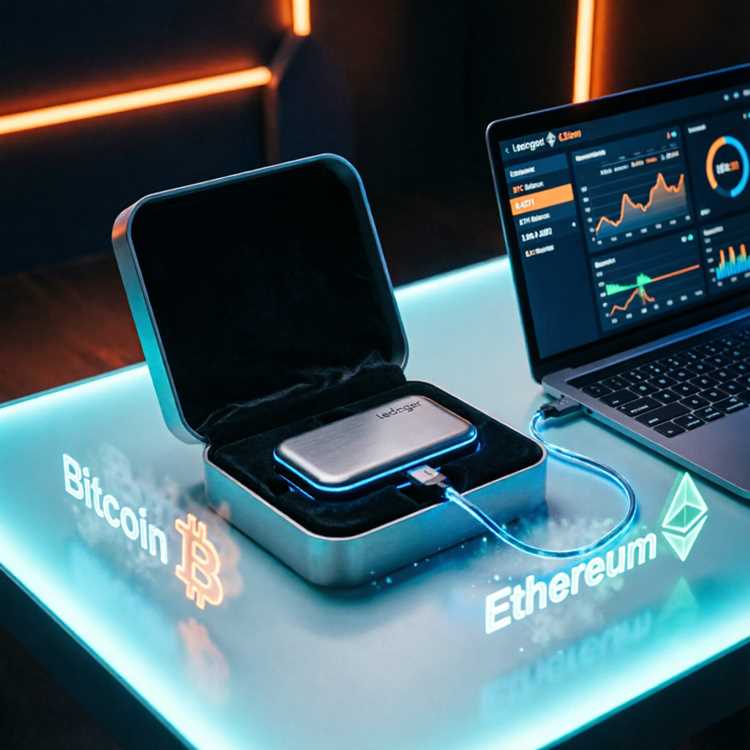
How to Set Up a Ledger Wallet – Step-by-Step Guide
Setting up a hardware wallet is a smart move for crypto security. Learning how to set up a Ledger wallet gives you full control over your digital assets. This guide covers every step from unboxing to your first transaction. You will learn how to protect your recovery phrase and verify addresses. Following this process ensures your funds stay safe from online threats.
Hardware wallets keep private keys offline. They remove the risk of remote hacking. By the end of this guide, you will have a fully functional device. You will also understand how to manage multiple cryptocurrencies. Let us begin the setup process.
What Hardware and Software Do You Need for a Ledger Wallet Setup?
Before starting your Ledger wallet setup, gather the right tools. You need a compatible computer or smartphone. A stable internet connection is also required. The device itself comes with a USB cable. Ensure you download the official ledger app from the manufacturer's site.
Checking System Requirements
Ledger devices work with Windows, macOS, and Linux. Modern smartphones with Bluetooth support are also compatible. Your device must have a USB port. For mobile use, a USB-OTG adapter may be needed. Always update your operating system before starting.
Downloading Ledger Live
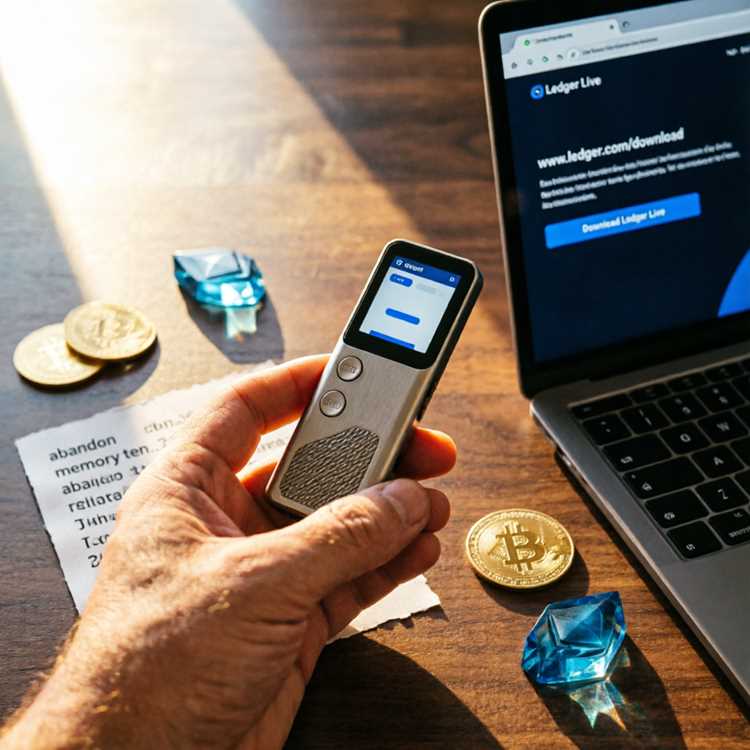
Ledger Live is the companion app for managing your device. Find it on the official Ledger website. Do not search app stores for fake versions. The software handles crypto transactions and firmware updates. Install the correct version for your operating system.
Preparing Your Workspace
Set up in a quiet, private location. Avoid public Wi-Fi networks. Use a trusted computer with updated antivirus software. Have a pen and paper ready to write down your recovery phrase. Do not take screenshots or photos of this phrase.
How to Initialize Your New Ledger Device?
Ledger device initialization is your first security step. The device comes without any pre-installed keys. You must create a new seed phrase during this process. This phrase acts as the master key to all your accounts. Never share it with anyone.
Connecting Your Device
Plug the device into your computer using the provided USB cable. Hold both buttons to confirm the setup. The screen will ask if you want to configure as a new device. Press the left button to select "New device".
Choosing Your PIN Code
The device asks you to set a PIN code. Choose a code between 4 and 8 digits. Avoid obvious numbers like 1234. Write down the PIN separately from your recovery phrase. Enter the code a second time to confirm it. Your device now has a basic lock.
Generating Your Recovery Seed
The device generates a 24-word recovery phrase. Each word appears one by one on the screen. Verify each word carefully. Write every word in the correct order. This phrase can restore your wallet if the device is lost. Store it in a safe place like a fireproof safe.
How to Complete the Ledger Wallet Configuration Process?
The Ledger wallet configuration process involves pairing your device with Ledger Live. You must also install blockchain apps for each crypto asset. This step is vital for managing different coins. Without these apps, the device cannot process transactions.
Pairing Your Device with Ledger Live
Open Ledger Live on your computer. Select the option to add a new device. Follow the on-screen instructions. The app will pair with your hardware wallet via USB. Bluetooth pairing is available for the Nano X model.
Installing Blockchain Apps
Each cryptocurrency requires a dedicated app. For example, Bitcoin needs the Bitcoin app. Ethereum needs the Ethereum app. Open the Manager section in Ledger Live. Browse the available apps and click install. Your device storage is limited, so delete unused apps.
Adding Accounts
After installing an app, open the Accounts tab. Click "Add account" and select your cryptocurrency. The app will generate a public address. Verify this address on your device screen. Confirm the address matches what appears on your computer.
What Is a Recovery Phrase and How Do You Store It Safely?
The Ledger recovery phrase is the most important element of your setup. It is a list of 24 random words. Anyone with this phrase can access your funds. Protecting it is your primary responsibility. There is no reset button for lost phrases.
Physical Storage Options
Write the phrase on the provided recovery sheet. Use a permanent marker to avoid fading. Consider using a metal backup device. These devices resist fire, water, and physical damage. Avoid storing the phrase in digital formats like text files.
Multiple Backup Locations
Store copies in two separate secure locations. Use a safety deposit box for one copy. Keep another in a fireproof safe at home. Inform a trusted family member about the location. Do not label the container as "crypto seed".
Common Mistakes to Avoid
Never type your phrase into any website or app. Do not take photos of the words. Avoid storing the phrase in cloud storage services. Scammers often target beginners with fake recovery prompts. Remember that legitimate services never ask for your seed phrase.
How to Send and Receive Cryptocurrency Using a Ledger Nano S or X?
Learning how to send and receive crypto is part of any stellar Ledger wallet review. The process is similar across all Ledger models. Always confirm addresses on the device screen. This prevents sending funds to wrong addresses.
Receiving Funds
Open the blockchain app for the currency you want to receive. Select "Receive" in Ledger Live. The app shows a public address. Verify this address on your device screen. Copy the address to your clipboard. Share it with the sender.
Sending Funds
Select the account you want to send from. Click "Send" and enter the recipient address. Enter the amount you want to transfer. Confirm the transaction details on your device. Press both buttons to sign the transaction. The funds leave your wallet immediately.
Checking Transaction History
All transactions appear in the Ledger Live dashboard. You can export this data for tax purposes. Each transaction shows the status, fee, and confirmations. Use blockchain explorers for more detailed information. This feature helps with tracking your portfolio.
How to Update Firmware and Manage Apps on Your Ledger Device?
Regular updates maintain security and add new features. Firmware updates fix vulnerabilities and improve performance. App updates ensure compatibility with network upgrades. Staying current is a key part of good Ledger token management.
Updating Firmware
Open Ledger Live and connect your device. Navigate to the Manager section. If an update is available, it appears at the top of the screen. Click "Update" to start the process. Keep your device connected until the update finishes. Do not unplug during this time.
Installing and Removing Apps
Access the Manager section to install apps. Each app takes up limited device storage. Remove unused apps to free up space. Reinstalling an app does not affect your accounts. Your recovery phrase restores all keys.
Resetting Your Device
Resetting the device erases all private keys. Only do this if you have your recovery phrase. Navigate to Settings and select "Reset device". Confirm the action. Your device returns to factory state. Use your recovery phrase to restore access.
What Security Features Do Ledger Wallets Offer?
Ledger wallets use a secure element chip similar to credit cards. This chip isolates your private keys from the computer. Each transaction requires physical confirmation. This prevents remote attacks even if your computer is infected with malware.
Secure Element Chip
The secure element chip is certified to a high security standard. It stores private keys in a dedicated, tamper-resistant area. The chip executes cryptographic operations internally. Never exposing keys to the operating system.
BOLOS Operating System
BOLOS is the custom operating system running on Ledger devices. It isolates each app from others. An app cannot access data from another app. This limits the damage from a compromised app. BOLOS ensures a strict security boundary.
Physical Confirmation
Transaction details appear on the device screen. You must press physical buttons to approve or reject. Malware cannot fake this confirmation. Always verify addresses and amounts on the screen. This is your final defense against signing malicious transactions.
How to Restore Your Wallet Using the Recovery Phrase?
Restoring a wallet is needed if you lose your device or buy a new one. The process uses your 24-word recovery phrase. A new device becomes an exact copy of the old one. This is why secure phrase storage is so critical.
Starting the Restore Process
Connect your new device and start Ledger Live. Choose "Restore from recovery phrase". The device asks you to enter the 24 words. Use the buttons to select each word from a list. Confirm each word before moving to the next.
Reinstalling Apps
After restoring the phrase, install the blockchain apps again. Go to the Manager section. Select each app you previously used. The apps contain the derivation paths for your accounts. This step restores your ability to transact.
Verifying Restored Accounts
Open each app and check your balances. Add accounts in Ledger Live to see your transaction history. The process restores all previously generated addresses. If an account is missing, add it manually. Your funds remain safe during the entire process.
Comparison of Popular Ledger Models
Knowing the differences between models helps with your purchase. Ledger Nano X review articles highlight its Bluetooth feature. The Nano S Plus offers more storage. The Stax model includes a larger screen. Consider your budget and usage needs.
| Model | Screen Size | Connectivity | App Capacity | Price Range |
|---|---|---|---|---|
| Nano S | Small | USB only | 3-5 apps | Low |
| Nano S Plus | Medium | USB only | 100+ apps | Medium |
| Nano X | Small | USB + Bluetooth | 100+ apps | Medium-High |
| Stax | Large | USB + Bluetooth | 100+ apps | High |
Frequently Asked Questions About Ledger Wallet Setup
Many users ask similar questions during their setup. This section addresses the most common concerns. Answers are based on official documentation and best practices.
Can I use a Ledger without a computer?
Yes, but only with specific models. The Nano X has Bluetooth for mobile use. You need a smartphone with the Ledger Live app. Other models require a USB connection to a computer.
What happens if I lose my Ledger device?
Your funds are not lost if you have the recovery phrase. Buy a new device and restore the phrase. Your accounts and balances will reappear. The old device is useless without the phrase.
Is the Ledger Live app safe to use?
Yes, when downloaded from the official site. Avoid third-party download sources. The app does not store your private keys. It only shows balances and initiates transactions.
Can I buy a used Ledger device?
It is not recommended. Used devices may have compromised firmware. Always buy directly from the manufacturer. If you do buy used, reset the device before setting it up.
How do I find a Ledger wallet savings deal?
Check the official store for bundle offers. Look for discount codes during holidays. Some retailers offer free shipping. Compare prices across trusted resellers.
What is a cheap Ledger Nano S Plus option?
The standard Nano S is the most affordable model. It offers good security with limited app storage. Check for discounts on the official website. Avoid second-hand marketplaces.
Can I find a Ledger Nano X sale?
Sales often occur during Black Friday or Cyber Monday. Sign up for the official newsletter. Some resellers offer bundle deals with accessories. Always verify the reseller is authorized.
Do I need a Ledger hardware wallet case?
A case protects your device from scratches and drops. It also prevents accidental button presses. Cases are inexpensive and worth buying. Choose silicone or hard plastic options.
What is the best Ledger Stax crypto model?
The Stax has a large E Ink screen. It shows NFTs in black and white. The device includes a built-in fingerprint sensor. It is the most advanced Ledger model currently available.
How long does setup take?
Initial setup takes about 15-20 minutes. Installing apps adds more time. Restoring a wallet from a phrase takes similar time. Plan for 30 minutes for your first complete setup.